
KY IPTV Device Setup Walkthrough
Follow our clear, verified walkthroughs to configure KY IPTV on your Amazon Firestick, Android TV, Apple TV, Samsung/LG smart screen, PC, or MAG box.
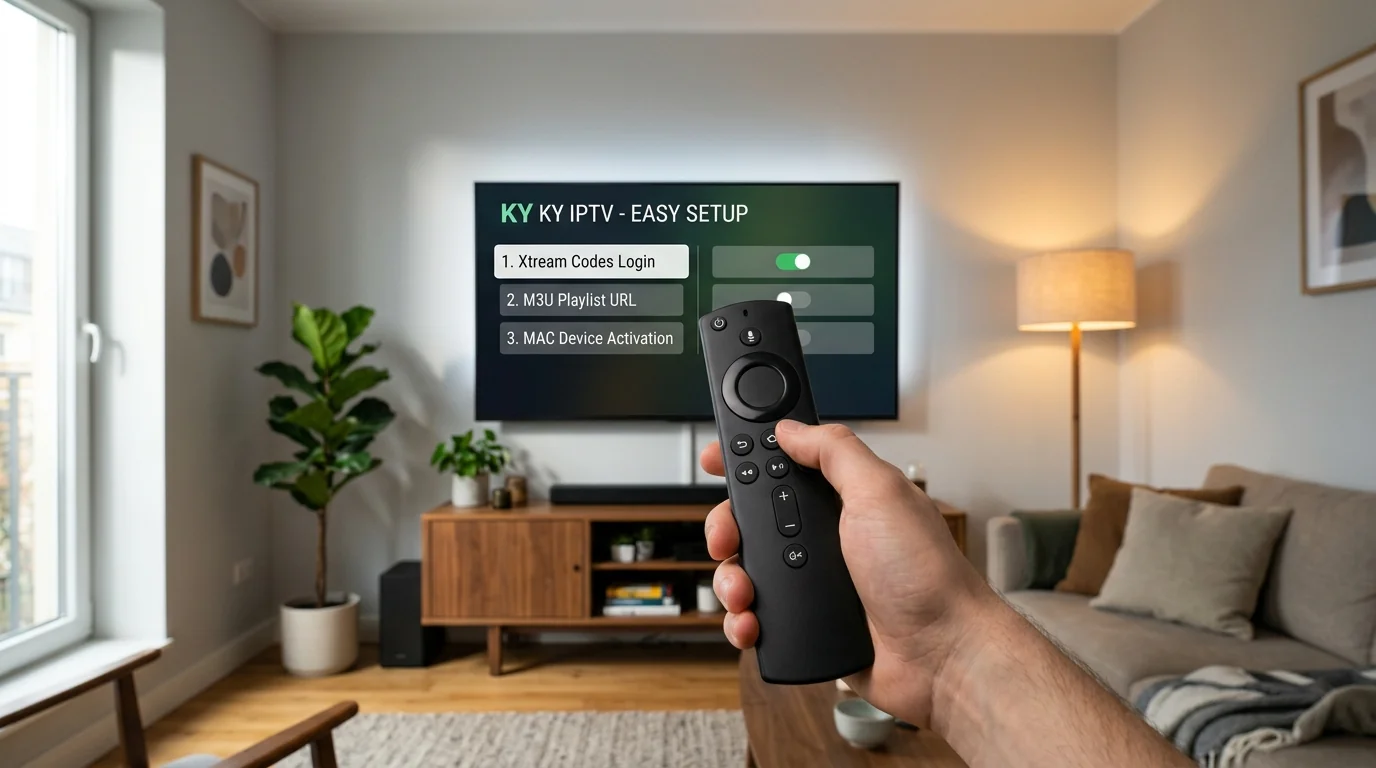
Understanding Your Connection Credentials
When subscribing to KYTV IPTV, you receive your connection details via your activation email or subscriber portal. Most modern applications ask for three or four specific fields:
KY IPTV).
http://portal.example.com:80).
Setting Up KY IPTV on Amazon Firestick & Fire TV
Installing the official KY IPTV application on Amazon Firestick, Fire TV Cube, or Fire TV Edition smart television takes less than 2 minutes using the official Downloader application.
Official KY IPTV Firestick App
Direct high-performance TV player pre-configured for your KY IPTV service
-
Install the Downloader App:
From your Firestick home screen, navigate to Find → Search, type in
Downloader, and install the orange Downloader app from AFTVnews. -
Enable Unknown Sources:
Go to Firestick Settings → My Fire TV → Developer Options. Turn on Install Unknown Apps (or Apps from Unknown Sources) and toggle Downloader to ON.
Note: On recent Fire OS updates, if Developer Options is hidden, go to Settings → My Fire TV → About, and click your device name 7 times rapidly to reveal Developer Options. -
Download the Official KY IPTV App (Downloader Code: 9501936):
Launch Downloader, enter the shortcode
9501936into the URL/Search bar, and click Go.
The official KY IPTV application will download directly to your Firestick. When prompted, select Install, then click Done.Alternative Players: If you prefer third-party players, you can also install TiviMate IPTV Player or IPTV Smarters Pro via Downloader. - Launch KY IPTV & Enter Credentials: Open the installed KY IPTV app. Server host DNS is pre-configured automatically — simply input your Username and Password (provided in your activation email or WhatsApp message) and click Sign In.
- Instant Stream Loading: The app will authenticate and immediately load your Live Channels, Sports schedules, Movies, Series, and full TV Guide with zero manual playlist configuration required!
Setting Up KY IPTV on Android TV & Google TV
On NVIDIA Shield, Chromecast with Google TV, and Sony/TCL smart televisions, the installation process is straightforward via the official Google Play Store.
- Open Google Play Store: On your Android TV interface, launch the Google Play Store.
-
Search for Your Player:
Search for
TiviMate IPTV PlayerorSparkle TVorOTT Navigatorand click Install. - Launch and Select Add Playlist: Open the application. Click Add Playlist and choose Xtream Codes.
-
Enter Credentials:
Input your Server Address (including
http://and port number), your Username, and your Password. - Apply & Sync: Click Done or Login. Your channel bouquets, category lists, and TV guide will load automatically.
Setting Up KY IPTV on Apple TV, iPhone & iPad
Apple's tvOS and iOS ecosystem provides seamless iCloud synchronization across your handheld devices and living room Apple TV 4K.
- Open Apple App Store: Launch the App Store on your Apple TV, iPhone, or iPad.
- Install a Verified IPTV Player: Search for and install IPTV Smarters Lite, GSE Smart IPTV, or UHF.
- Open App & Add User: Launch the application and select Login with Xtream Codes API (or Load Your Playlist/File/URL).
- Enter Your Details: Input your server URL, username, and password into the designated fields.
- Save & Stream: Confirm the credentials. The app will sync your channel guide and on-demand listings.
Setting Up KY IPTV on Samsung (Tizen) & LG (webOS)
Smart TVs running proprietary operating systems utilize dedicated web-activated media players from their native app store.
-
Install IBO Player or Smart IPTV:
Open the Samsung App Store or LG Content Store. Search for
IBO Player,Smart IPTV, orNanomidand install it. -
Note Your Device MAC Address:
Launch the player. On the start screen or settings page, the app will display your TV's Device MAC Address (e.g.,
00:1A:79:XX:XX:XX) and a Device Key / PIN. - Activate on the Player's Web Portal: On your computer or smartphone, open the official portal website for the installed app (e.g., iboplayer.com/upload or siptv.app/mylist).
- Upload Your Playlist: Enter your TV MAC address, key, and choose Add Xtream Codes / M3U. Enter your server URL, username, and password.
- Reload the TV App: Return to your TV, press reload or restart the app, and your KY IPTV playlist will appear ready to stream.
Setting Up KY IPTV on Windows PC & macOS
Stream on your computer using dedicated desktop clients or the universal VLC Media Player.
Option A: IPTV Smarters Desktop App (Recommended)
- Download the official IPTV Smarters application for Windows (EXE) or macOS (DMG).
- Install and launch the app.
- Select Add New User → Login with Xtream Codes API.
- Enter your Playlist Name, Server URL, Username, and Password, then click Add User.
Option B: VLC Media Player (Network Stream)
- Open VLC Media Player.
- Click Media (or File) → Open Network Stream (Shortcut:
Ctrl + NorCmd + N). - Paste your complete M3U playlist URL into the network URL field.
- Click Play. Open the Playlist view (
Ctrl + L) to browse channels.
Setting Up KY IPTV on MAG Set-Top Boxes
Infomir MAG hardware boxes (MAG 254, 322, 421, 520) use Stalker middleware portal addresses linked to your hardware MAC address.
-
Locate Your MAC Address:
Look at the sticker on the underside of your MAG box for the MAC address starting with
00:1A:79. Ensure this MAC address is registered with your subscriber plan. - Open MAG Settings: Turn on your MAG box without the Ethernet connected (or go to Inner Portal → Settings).
- Configure Servers: Navigate to System Settings → Servers → Portals.
-
Input Portal Details:
- Portal 1 Name:
KY IPTV - Portal 1 URL: Enter the exact MAG portal URL provided by your service provider.
- Portal 1 Name:
- Reboot: Save the settings and select Reboot Device. The box will load the Stalker portal and channel interface.
Post-Setup Tips for the Smoothest Playback
After your playlist has synchronized, consider these two quick optimizations inside your player's settings menu:
Enable Hardware Decoder
In your player's playback settings (e.g. TiviMate Settings → Playback), verify that the Video Decoder is set to Hardware. This offloads video decompression to your device's GPU, eliminating dropped frames.
Set EPG Update Frequency
Set the Electronic Program Guide auto-refresh interval to Once every 24 hours or Update on App Start so you always have fresh schedules without overwhelming local storage.
Experiencing an unexpected connection issue during setup?