
KY IPTV Troubleshooting & Problem Solving
Encountering stream buffering, missing TV guide listings, or audio desync on KY IPTV (or KY TV feeds)? Follow our practical, step-by-step diagnostic solutions below.
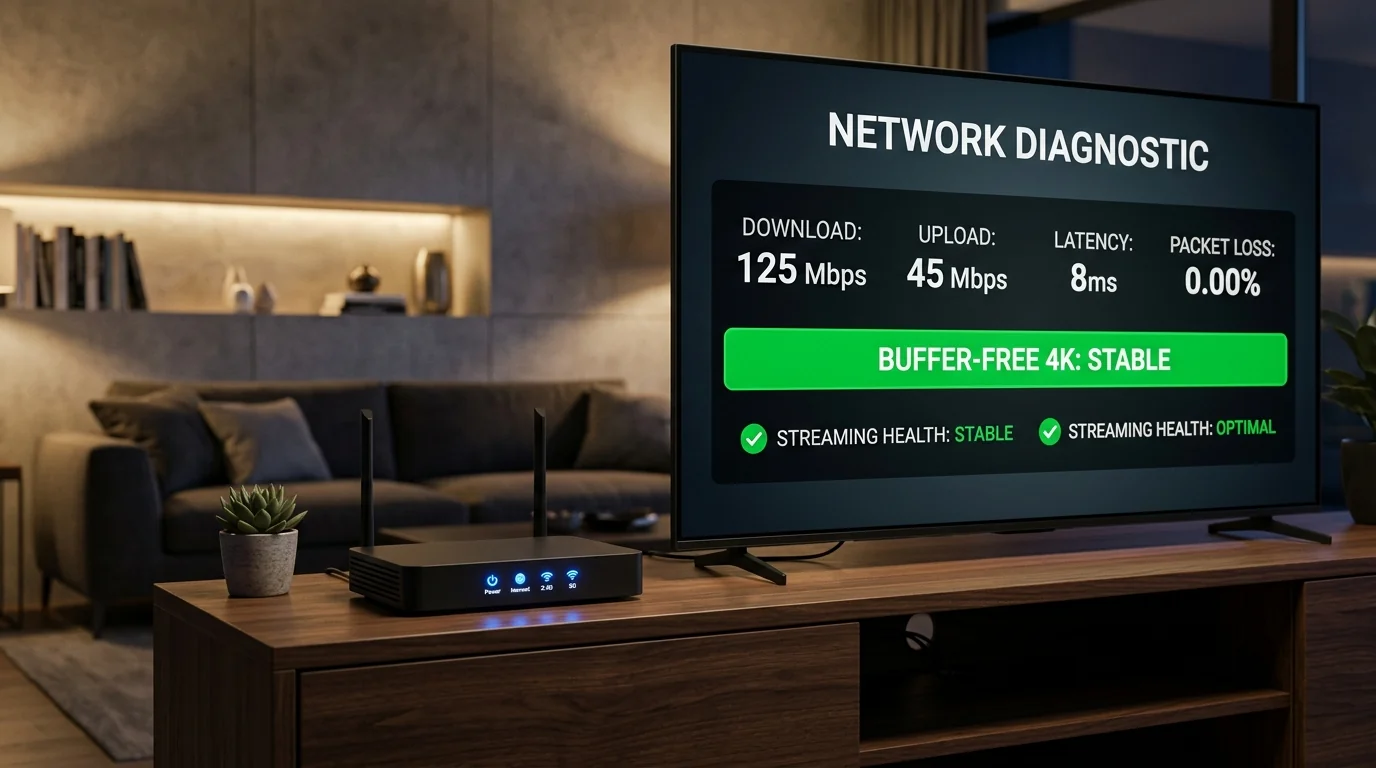
Fixing Stream Buffering & Freezing
Common IssueCategory: Buffering & Speed
Stream buffering occurs when video packets arrive slower than the player's consumption rate. While many assume this is caused by server overload, the most frequent culprit is residential Wi-Fi packet drop or Internet Service Provider (ISP) traffic throttling during peak evening hours.
Step-by-Step Fixes:
- Perform a Complete Power Cycle: Unplug both your streaming device (Firestick, TV, or Box) and your Wi-Fi router from wall power. Wait a full 60 seconds, then plug the router in first. Once the internet light turns solid, power on your streaming device.
- Switch from 2.4 GHz to 5 GHz Wi-Fi: The 2.4 GHz frequency is often crowded with interference from neighboring networks and household electronics. Connect your streaming device to your 5 GHz Wi-Fi SSID for significantly higher throughput and lower latency.
- Adjust Buffer Size in Your Player: In apps like TiviMate (Settings → Playback → Buffer Size), change the buffer setting from None or Small to Normal or Large. This allows the app to preload several seconds of stream data ahead of time.
- Use an Ethernet Adapter: For devices like the Amazon Firestick or Chromecast, using a dedicated micro-USB / USB-C Ethernet adapter provides an uninterrupted hardwired connection that completely bypasses Wi-Fi signal fluctuations.
EPG Guide Missing or Showing "No Information"
Guide IssueCategory: EPG & Guide
When your TV guide displays "No Information" across all channels, it typically means the local XMLTV guide cache is corrupted, has expired, or has a time zone offset conflict.
Step-by-Step Fixes:
- Clear EPG Cache: Inside your player (e.g. TiviMate Settings → EPG), select Clear TV Guide Data. Confirm the action to wipe old stored guide records.
- Trigger a Manual Guide Update: Directly after clearing the cache, click Update TV Guide. Allow the progress indicator to complete without closing the app (usually 30–60 seconds).
-
Adjust Time Shift Offset: If guide programs appear shifted by a few hours (e.g., an 8:00 PM show is listed at 5:00 PM), navigate to EPG Settings → Time Offset and adjust by
+1,-1, or your specific timezone offset. - Verify Date & Time on Your Streaming Device: Ensure your television hardware system clock is set to Automatic (Network-provided time). An incorrect device date will cause the guide parser to reject current schedule feeds.
Fixing Audio & Video Desynchronization
Playback IssueCategory: Audio / Video
Audio desync—where the dialogue does not match the actors' lip movements—usually occurs when the device's video hardware decoder drops video frames during high-bitrate scenes while continuing to process audio without delay.
Step-by-Step Fixes:
- Switch Video Decoder Mode: In player settings, locate Playback → Video Decoder. Switch from Hardware to Software (or Hardware+ if available). Test the channel again.
- Disable Audio Passthrough: If using a soundbar or external AV receiver, disable Audio Passthrough inside the IPTV player settings, allowing your TV or streaming stick to decode the audio stream internally.
-
Use Fine Audio Delay Correction: During playback, open the in-stream player controls menu, select the audio icon, and adjust Audio Delay in increments of 50ms (e.g.
+100msor-100ms) until dialogue is perfectly in sync. - Match Frame Rate (AFR): Enable Auto Frame Rate in your player if your TV supports it. This locks the display refresh rate to the native broadcast signal (50Hz or 60Hz), eliminating micro-stutters and audio drift.
Optimizing DNS to Bypass ISP Throttling
Network OptimizationCategory: Network & DNS
Many domestic Internet Service Providers use default DNS servers that actively throttle or misroute IP television traffic during live high-profile broadcasts. Switching your DNS to trusted public resolvers resolves routing delays and connection dropouts.
How to Apply on Firestick / Android TV:
Go to Settings → Network. Forget your Wi-Fi network and reconnect. Choose Advanced Settings. Keep your IP address the same, enter your Gateway (usually 192.168.1.1), Subnet Mask (24), and set DNS 1 to 1.1.1.1 and DNS 2 to 1.0.0.1.
App Freezing, Crashing or Out of Memory
App MaintenanceCategory: Buffering & Speed
Over time, streaming media players accumulate temporary thumbnail caches and XMLTV schedule databases. On streaming sticks with limited internal flash memory (such as 8 GB Firesticks), a full cache can cause sudden app crashes.
- On your Firestick, open Settings → Applications → Manage Installed Applications.
- Scroll down and select your IPTV player (e.g. TiviMate or IPTV Smarters Pro).
- Click Force Stop, then click Clear Cache.
Important: Do NOT click "Clear Data" unless you wish to delete your saved login credentials and playlists. - Relaunch the app. It will operate with refreshed temporary memory.
Problem Not Listed Here?
Our support desk is ready to help diagnose stream issues, server connection errors, or player configuration hiccups.